Last updated: April 29th, 2024
In this article:
How to fill in csv file for Australia Post rate import
Step 1: Download template file
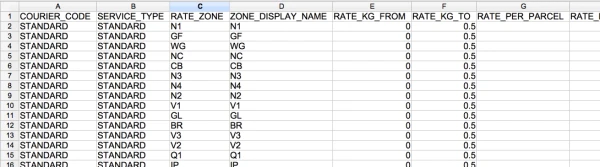
Download Australia Post rate template file from link below:
For Standard Rate:
For Express Rate:
Step 2:
In the template file, it has following fields:
- COURIER_CODE
- SERVICE_TYPE
- RATE_ZONE
- ZONE_DISPLAY_NAME
- RATE_KG_FROM
- RATE_KG_TO
- RATE_PER_PARCEL
- RATE_PER_KG
- RATE_MINIMUM
- TRANSIT_TIME
- IS_SATCHEL
- RATE_START
- RATE_END
Please leave following fields as is, it has been pre-fill for Australia Post Standard Courier Code and Service Type:
- **COURIER_CODE **
- SERVICE_TYPE
- RATE_ZONE
- IS_SATCHEL
Step 3:
For example you receive below rate from Australia Post:

See below example how to match your Australia Post 500g to 1kg rate to the import template:
Example for rate 500 to 1kg for N1 zone:
- Find the N1 rate for under 500g from table above
- Fill in the template fields with below:
ZONE_DISPLAY_NAME = N1 (OR any name you want)
RATE_KG_FROM = 0.5
RATE_KG_TO = 1
RATE_PER_PARCEL = 8.5 (from rate table above)
RATE_PER_KG = per kg rate (0 if not available)
RATE_MINIMUM = minimum price to send 1 parcel
TRANSIT_TIME = in words, for example "1 to 2 Business day" (Optional)
RATE_START = the date this rate valid from, in YYYY-MM-DD format, for example 2018-08-01
RATE_END = the date this rate valid until, in YYYY-MM-DD format, for example 2019-09-01
See below row look like in csv file for example above

- Use example above to add all other rate zone (N0, GF,WG.......)
- Important: Delete the row from the template for the zone that is not apply to you. For example if you do not have zone V0, just delete the whole row.
- Repeat for all other weight range, by changing the RATE_KG_FROM and RATE_KG_TO fields, for example: 1 to 2kg, RATE_KG_FROM = 1 and RATE_KG_TO = 2 and so on.