Create a new bundle product
Last updated: April 22nd, 2024
In this article:
How to create a new bundle product?
A group of multiple simple products which are sold together for a single price. The items contained within a bundle are simple products with their own SKUs which are stocked and sold individually.
Step 1:
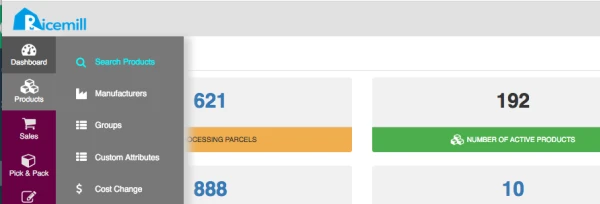
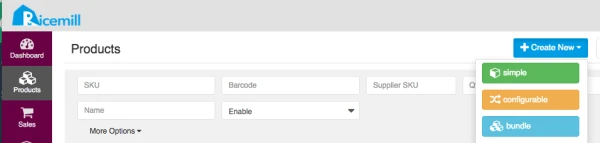
- Go to Products > Search Products, then click Create New button on the top right window & select bundle from the drop down list.
Step 2:
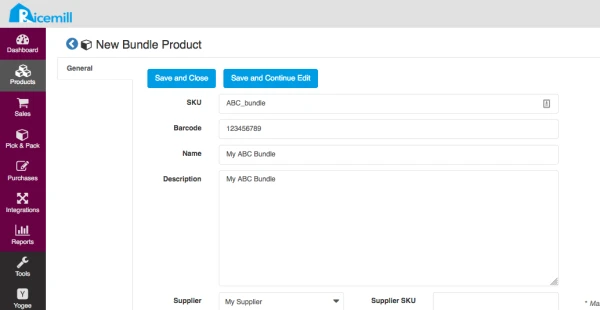
- Enter the product details in the New Bundle product window.
- When all the details have been entered, click Save and Continue Edit button.
Step 3:
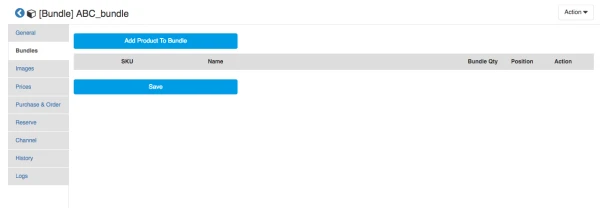
- You can add product/products to Bundle in the Bundles tab.
- Click Add Product To Bundle button.
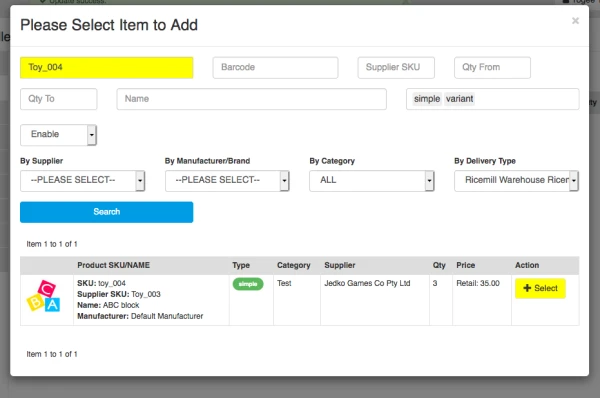
- Select item to add one at a time
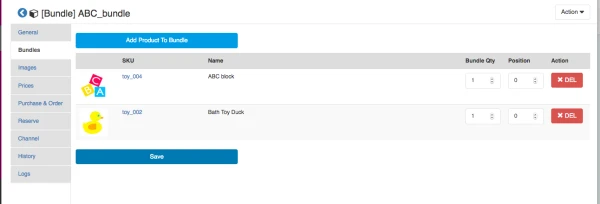
- When all the items have been selected, click Save button.
- Then, click Save and Continue Edit in the General tab to be able to update the Qty.
Step 4:
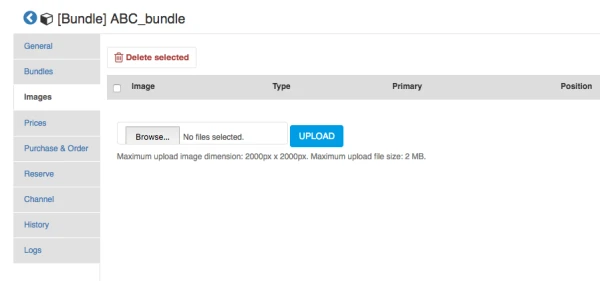
- You can upload the image/images of the bundle product in the Images tab.
- Click Choose Files
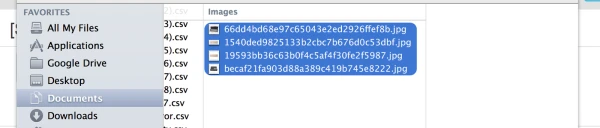
- You can select multiple images from file browser by holding down _command _(Mac) or _CTRL _(Windows)
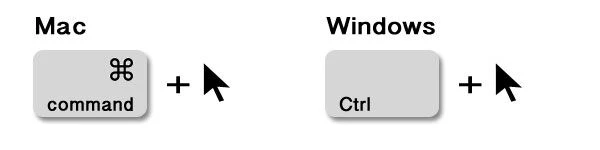
- Click Open
- Click UPLOAD button to upload your images.