Last updated: April 19th, 2024
In this article:
Create new configurable product
A configurable product appears to be a single product with lists of options for each variation. However, each option represents a separate, variant product with a distinct SKU, which makes it possible to track inventory for each variation.
Step 1:
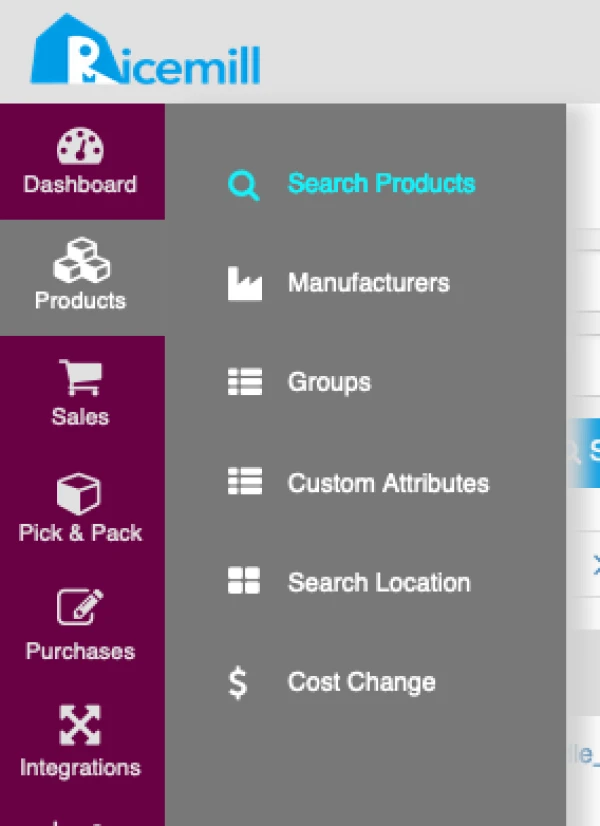
- Go to Products > Search Products
Step 2:
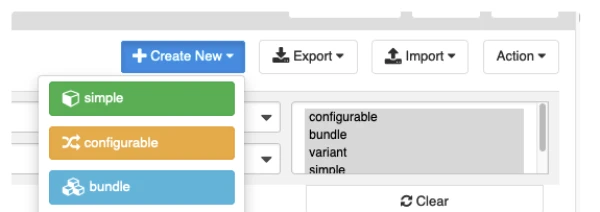
- Click on "Create New" > Configurable
Step 3:
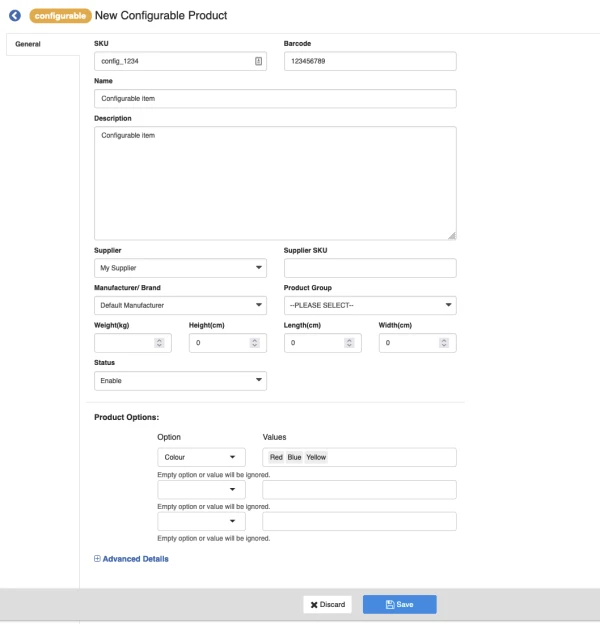
- Fill in product details.
Step 4:
How to Add product option
-
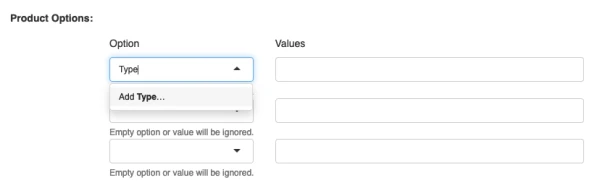
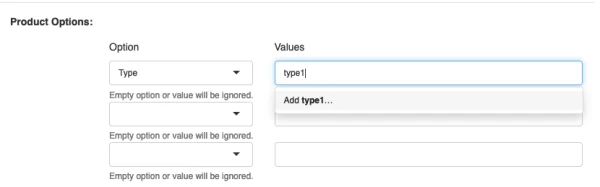
Add option like "Colour", "Size", "Type"...For example you are selling T-Shirt with different "Size" and "Colour", you can add options "Size" and "Colour"
-
Enter the option name and click on "Add ..."
-
Enter the option value and click on "Add ...", repeat for extra value
Step 5:
- When all the details have been entered, click "Save"
Step 6:
- Click on "Variants" tab
- Click on "Add Variant" button

Step 7:
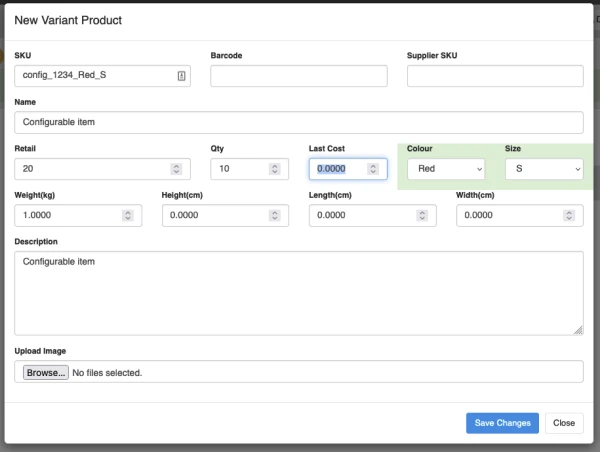
- Enter the Variant Product’s details in the **New Variant Product **window.
Please note that the SKU field is prefix with the SKU of the master Product.
The example below shows the variant with Red colour and S size.
Step 8:
- Click "Save" when all details have been entered.
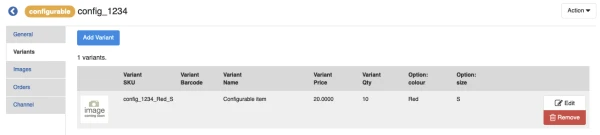
- A Variant item with Options selected will be created.
Step 9:
- Repeat steps 6-9 for all variants products.