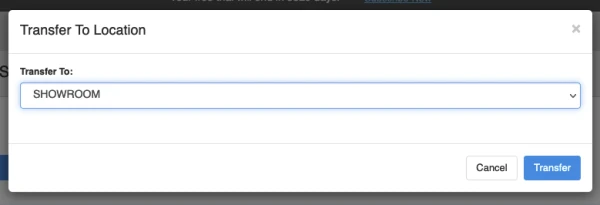
Product's Bin Location
Last updated: April 17th, 2024
In this article:
How to assign product's Bin Location
Step 1:
- Go to Products > Search Products
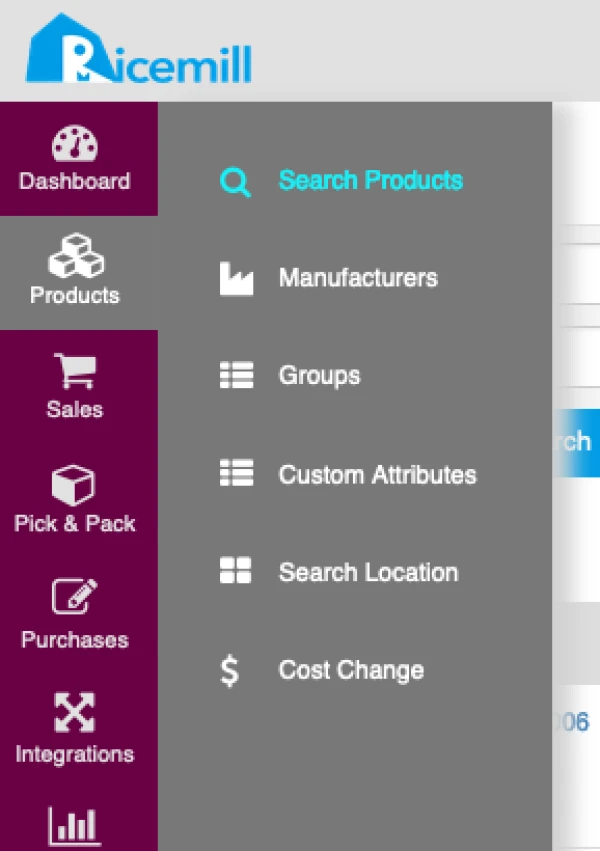
Step 2:
- Search and select the product you want to assign Bin Location, click on the "Edit" icon button

Step 3:
- Click on the "Bin Location" tab on the left-hand side.
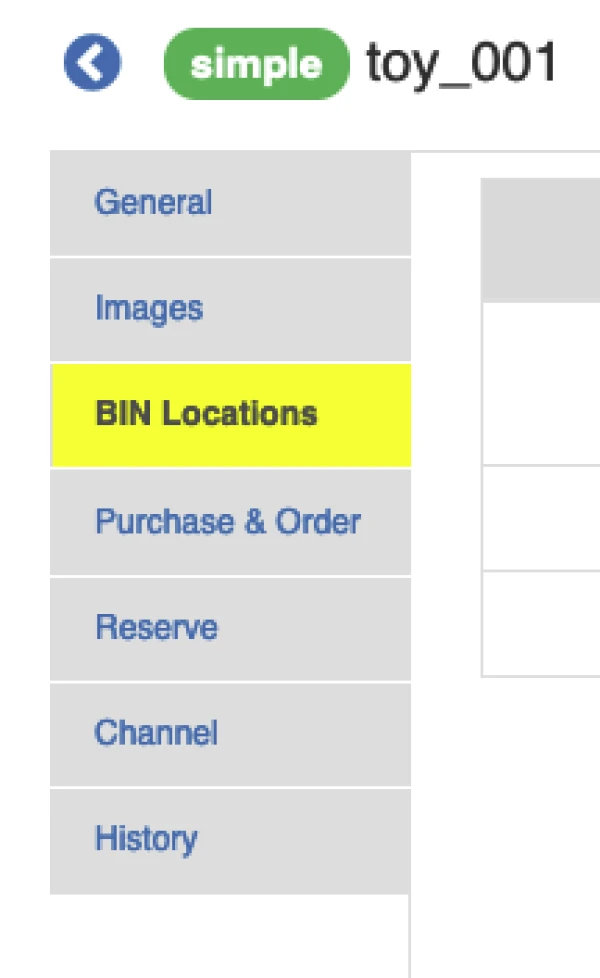
Step 4:
- Click on the "Transfer" button on the "Unallocated" location row

Step 5:
-
Select quantity you want to transfer to a new location.
-
Enter the Bin Location you want to transfer to.
-
Click on the "Transfer" button.
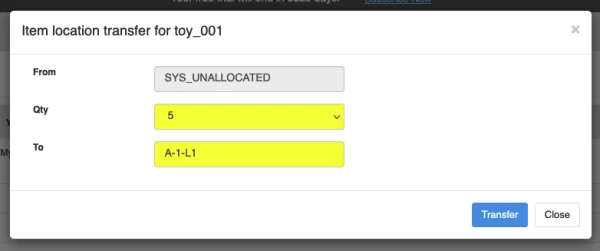
Step 6:
- You will see the quantity you select has been transferred to Bin Location you enter.

How to set Primary Bin Location
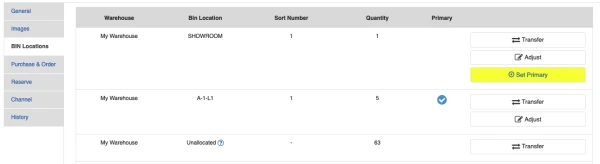
If you have more than 1 Bin Location for a product, you can select which Bin Location is the primary Bin Location.
Step 1:
- At the "Bin Location" of a product view, click on the "Set Primary" button.
Step 2:
- You will see a blue "Tick" icon under the Primary column.

How to batch transfer items in one Bin Location to another one
Step 1:
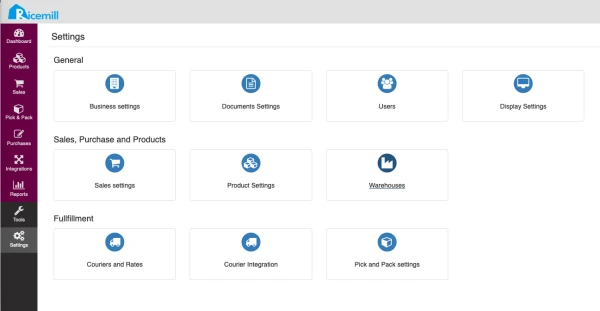
- Go to "Settings" > "Warehouse"
Step 2:
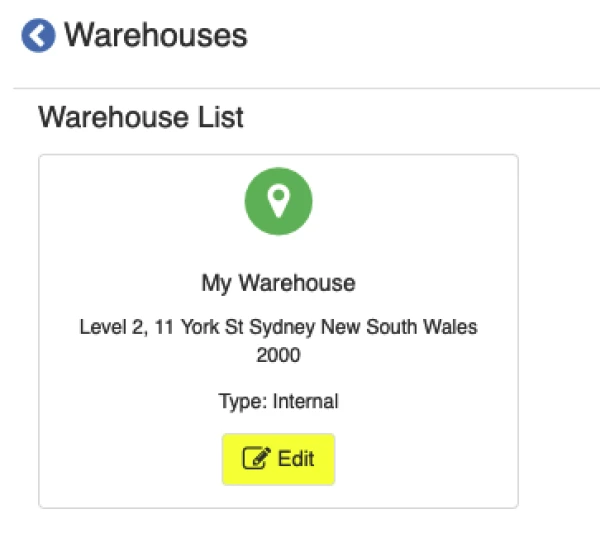
- Click "Edit" under the warehouse
Step 3:
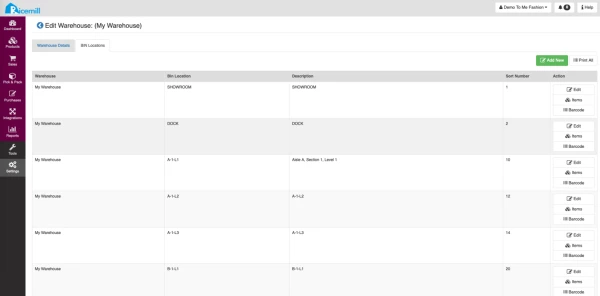
- Select the "BIN Locations" tab
Step 4:
- Click on the "Items" button on the Bin Location row you want to move to another location

Step 5:
-
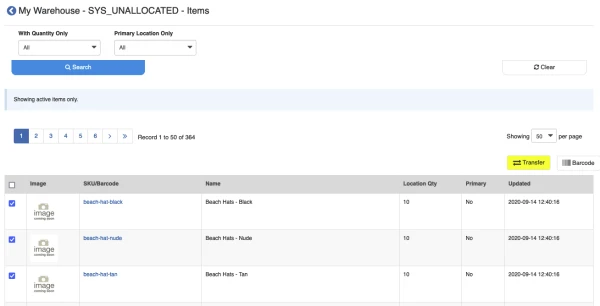
Select items you want to move to another location.
-
Click on "Transfer"
Step 6:
- Select the Bin Location you want to move items to and click on the "Transfer" button.