Connect to Amazon
Last updated: April 26th, 2024
In this article:
How to create MWS authorisation token?
Step 1:
- Log into your Amazon Seller account as primary user.
- Go to Settings > User Permission.
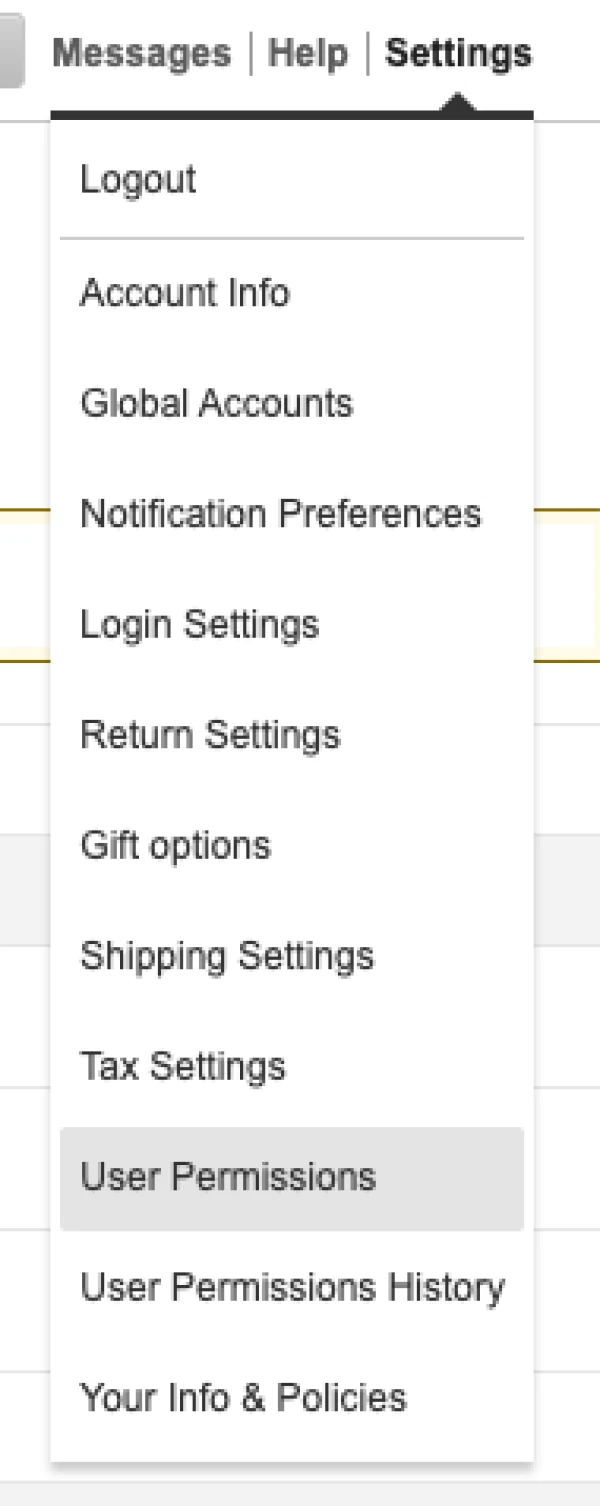
- Under "Third-party developer and apps", click on "Visit Manage Your Apps"

Step 2:
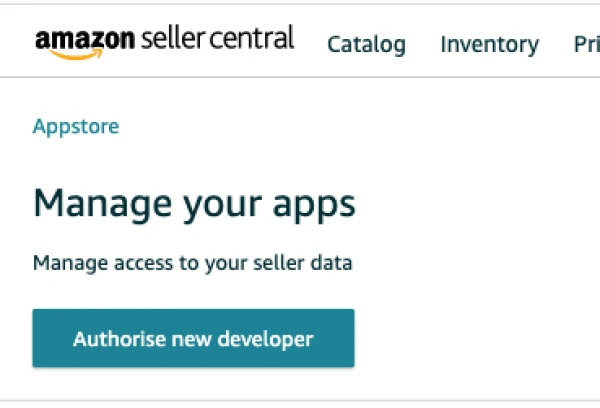
- Click on the "Authorize new developer" button.
Step 3:
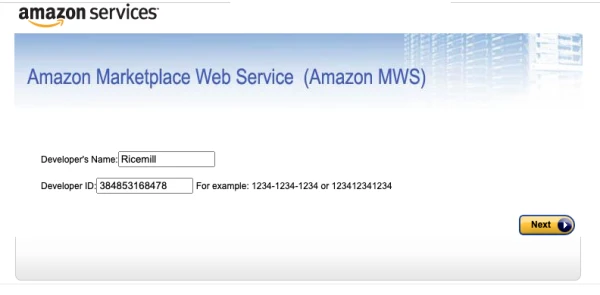
- Enter "Ricemill" for Developer's Name
- Enter 384853168478 as the "Developer ID""
- Click Next
Step 4:
- Accept the Amazon MWS License Agreement and click Next
Step 5:
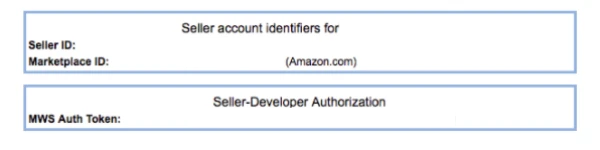
- Record the Seller ID, Marketplace ID and MWS Auth Token and use to Connect Ricemill to Amazon.
Connect to Amazon From Ricemill
Step 1:
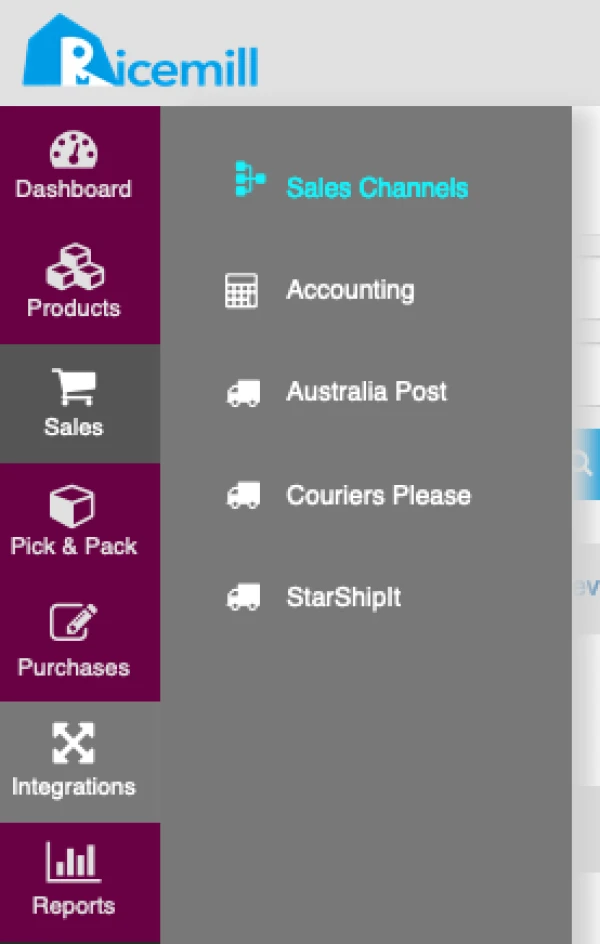
- Go to Integration > Sales Channel.
Step 2:
- Click on "Add Channel" button

Step 3:
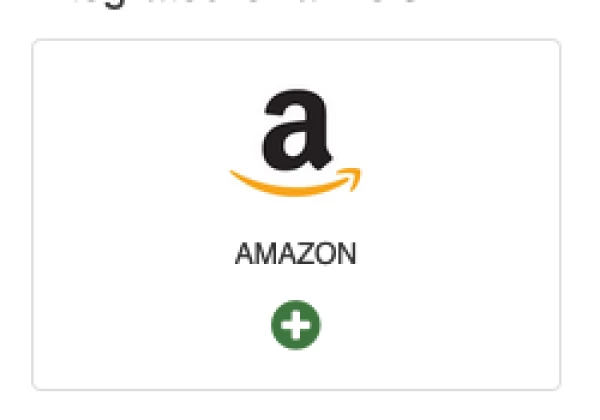
- Click on + ‘Amazon’
Step 4:
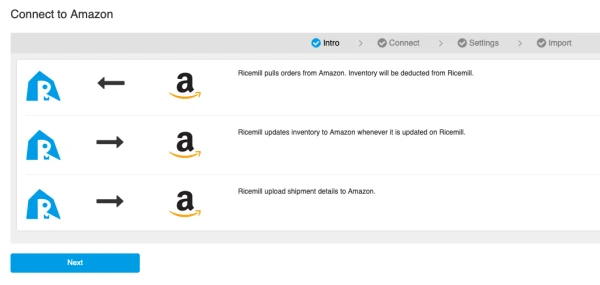
- Click "Next" button
Step 5:
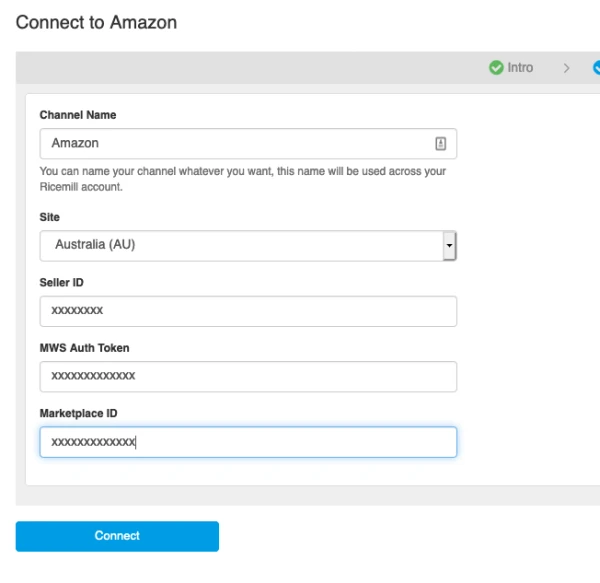
- Type in your Channel Name.
- Select Site
- Enter you Amazon sellect ID. (From How to Create MWS Auth Token Above)
- Enter MWS Auth Token. (From How to Create MWS Auth Token Above)
- Enter Marketplace ID. (From How to Create MWS Auth Token Above)
- Then click on "Connect"
Step 6:
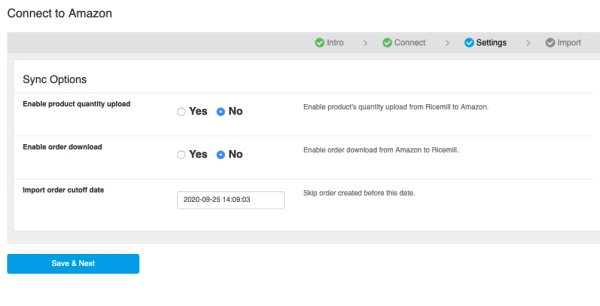
- Select Sync option and click on "Save & Next"
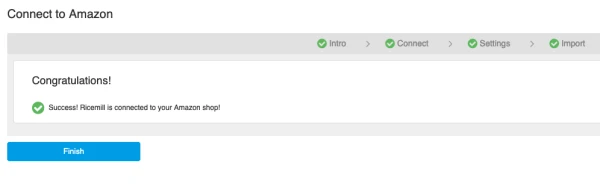
Note: Ricemill currently not support Product Listing to Amazon, you need to manually list product at Amazon, and match the SKU in Amazon to Product SKU in Ricemill.
Link product to Amazon Channel
- Select product you want to enable quantity syncs to Amazon.
- On product view page, click on "Channel" tab.
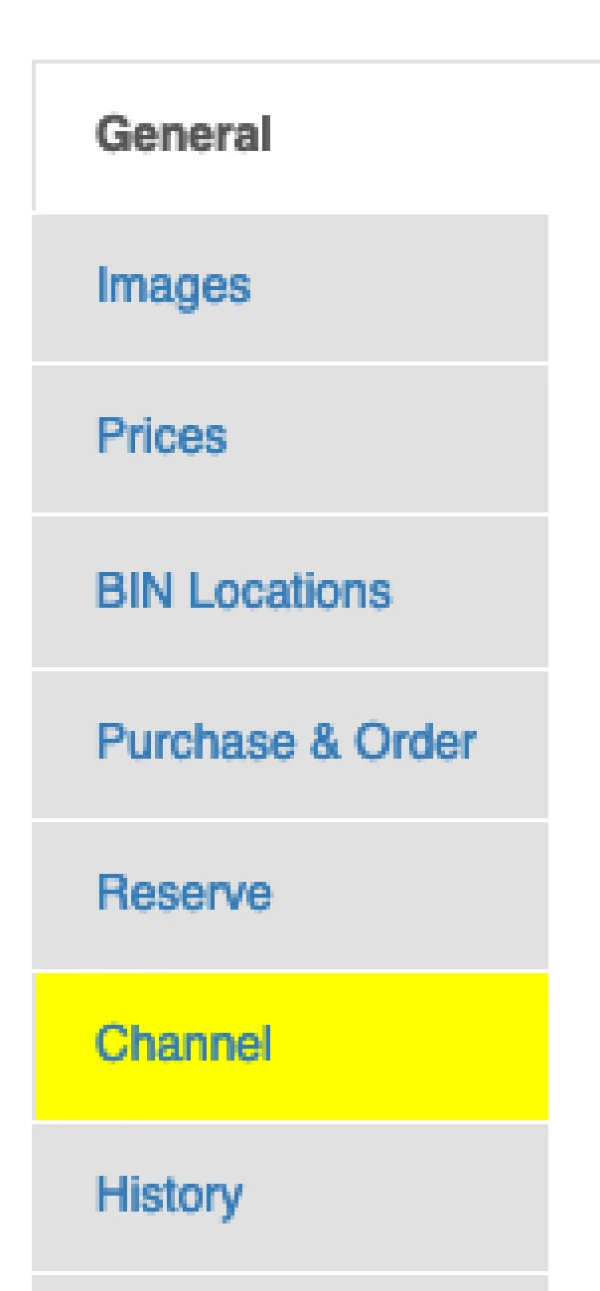
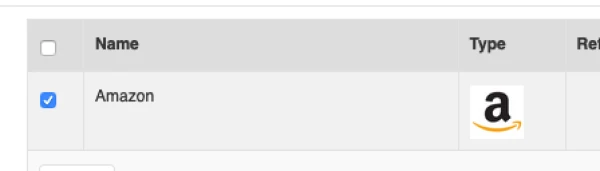
- Select the checkbox next to Amazon channel and save channel.