Last updated: April 26th, 2024
In this article:
How to add/edit eBay description template
Step 1:
- Go to Integrations-> Sales Channels
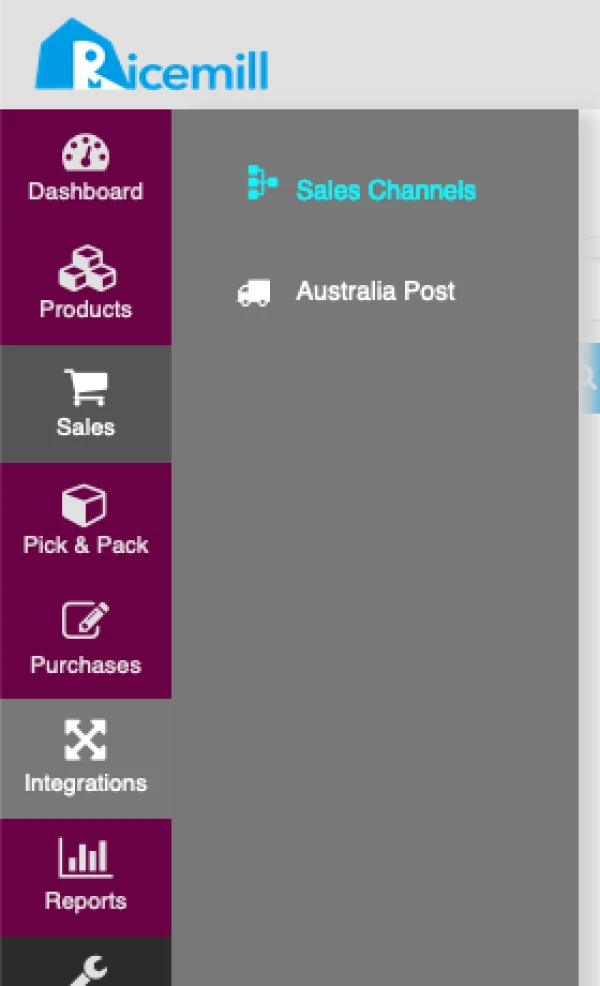
- Choose your eBay channel and click on "Open" button.

- Click on Active Listing
Step 2:
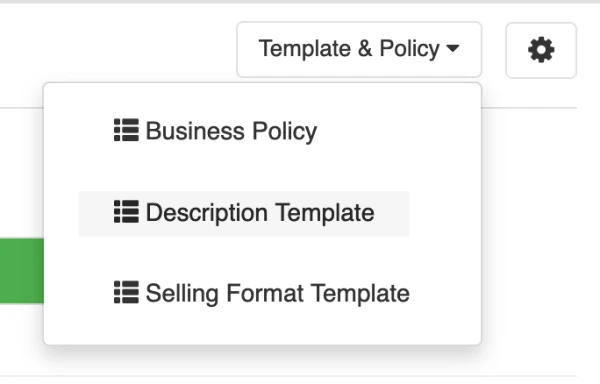
- Select "Template & Policy" from top right dropdown menu.
- Select "Description Template"
Step 3 (Add New):
- To add new template, click on "Create New" button.
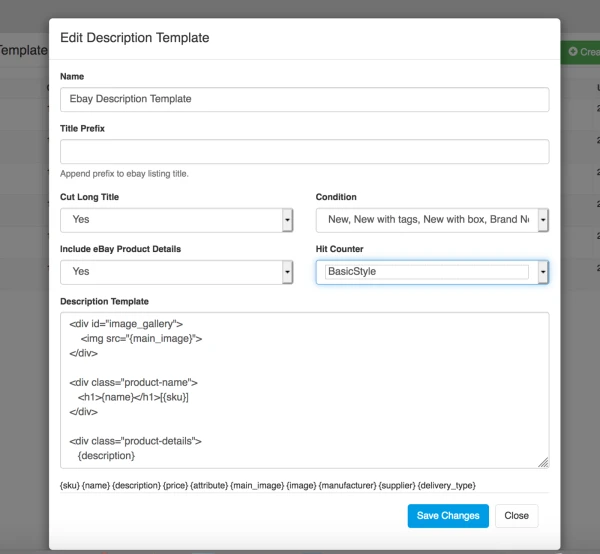
- Fill in the form.
Form fields:
- Name - Description template name.
- Title Prefix - Add prefix to your item's title.
- Cut Long Title - Trim the title if too long.
- Condition - Item condition.
- Description Template - Your ebay listing design template in HTML. See "Ebay description template variables" for details.

Step 3 (Edit):
- To edit the existing template, click on "Edit" button of template.
eBay description template variables definition
Variables:
- {sku}- Display item's SKU.
- {name} - Display item's name.
- {description} - Display item's description.
- {price} - Display item's price.
- 803f26f6-e6c6-4898-bdd4-74d17567bc87 - Display item's main image url only.
- {image_gallery} - Create image gallery of all item's image. See detailed instruction on how to add image gallery.
- {weight} - Display item's weight.
- {dimension} - Display item dimension in "Approx. package_height (cm) x package_length (cm) x package_width (cm)" format.
Example:
<div id="image_gallery">
    <img src="{main_image}">
</div>

<div class="product-name">
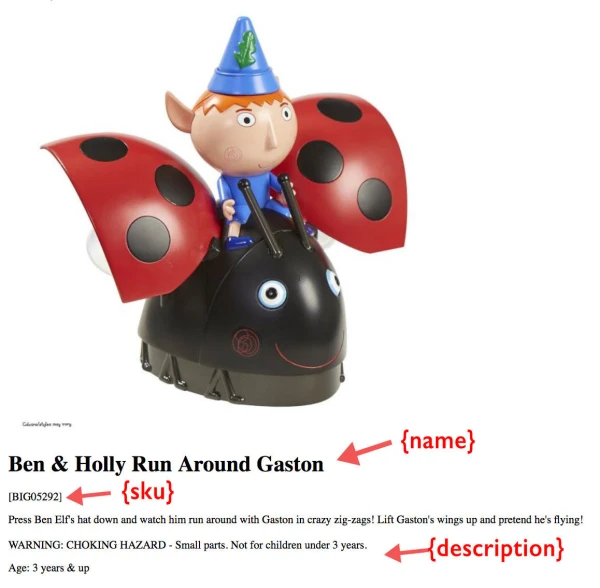
   <h1>{name}</h1>[{sku}]
</div>

<div class="product-details">
   {description}
</div>
Sample Output:
How to include image gallery to eBay listing?
Step 1:
Add following html code to your image gallery section (Your html listing template):
<div id="image_gallery">
{image_gallery}
</div>
Step 2:
Add following css:
<style>
#image_gallery {padding-bottom: 15px; width: 500px;}
#image_gallery section img{width:100%;}
#image_gallery section {
display: none;
padding: 20px 10px;
background-color: #fff;
font-family: Arial, Helvetica, sans-serif;
font-size: 12px;
line-height: 24px;
}
#image_gallery input {display: none;}
#image_gallery label {
display: inline-block;
margin: 0 0 -1px;
font-weight: 600;
text-align: center;
color: #fff;
font-family: Arial, Helvetica, sans-serif;
font-size: 13px;
border-top-right-radius: 10px;
border-top-left-radius: 10px;
}
#image_gallery label img{border: 1px solid #e1e1e1;margin: 0 5px;}
#image_gallery label:hover {  color: #888; cursor: pointer;}
#image_gallery input:checked + label {color: #fff;background-color: #403f3f;}
#image_gallery #tab1:checked ~ #content1,
#image_gallery #tab2:checked ~ #content2,
#image_gallery #tab3:checked ~ #content3,
#image_gallery #tab4:checked ~ #content4,
#image_gallery #tab5:checked ~ #content5,
#image_gallery #tab6:checked ~ #content6,
#image_gallery #tab7:checked ~ #content7,
#image_gallery #tab8:checked ~ #content8 {
display: block;
}
@media screen and (max-width: 650px) {
#image_gallery label {font-size: 0;}
#image_gallery label:before {margin: 0;font-size: 18px;}
}
</style>
Result:
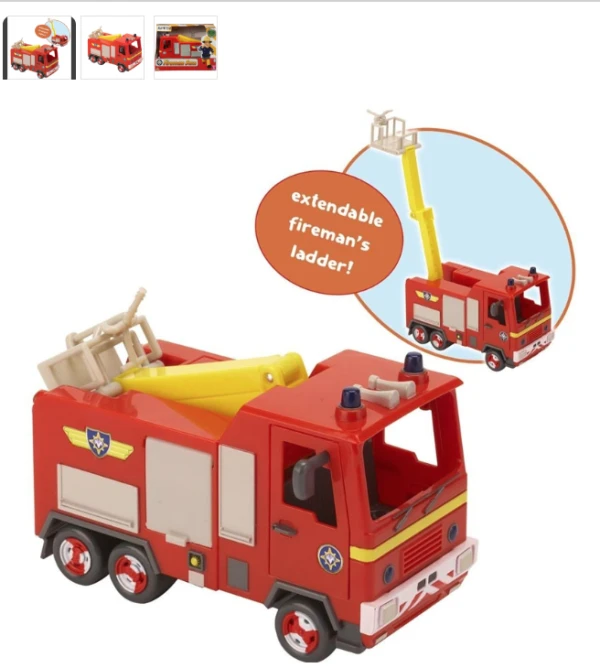
Sample eBay description template.
<style>

.ebay-listing { color: #2F2F2F; width:98%;}
.header {background-color: #f1f1f1;}
.header-menu { background-color: #d1d1d1; padding: 5px; text-align: right;margin-bottom: 15px;}
.align-pdbot-1 {padding-bottom: 5px;}
.panel {border:1px solid #e1e1e1; box-shadow: 0 0 0 #e1e1e1;}
.panel-default > .panel-heading {background-color: #e1e1e1; font-weight: bold;}
.row {
    margin-left: 0;
    margin-right: 0;
}

/*Image Gallery*/
#image_gallery {padding-bottom: 15px;}
#image_gallery section img{width:100%;}
#image_gallery section {
  display: none;
  padding: 20px 10px;
  background-color: #fff;
  font-family: Arial, Helvetica, sans-serif;
  font-size: 12px;
  line-height: 24px;
}
#image_gallery input {display: none;}
#image_gallery label {
  display: inline-block;
  margin: 0 0 -1px;
  font-weight: 600;
  text-align: center;
  color: #fff;
  font-family: Arial, Helvetica, sans-serif;
  font-size: 13px;
  border-top-right-radius: 10px;
  border-top-left-radius: 10px;
}

#image_gallery label img{border: 1px solid #e1e1e1;margin: 0 5px;}

#image_gallery label:hover {  color: #888; cursor: pointer;}
#image_gallery input:checked + label {color: #fff;background-color: #403f3f;}

#image_gallery #tab1:checked ~ #content1,
#image_gallery #tab2:checked ~ #content2,
#image_gallery #tab3:checked ~ #content3,
#image_gallery #tab4:checked ~ #content4,
#image_gallery #tab5:checked ~ #content5,
#image_gallery #tab6:checked ~ #content6,
#image_gallery #tab7:checked ~ #content7,
#image_gallery #tab8:checked ~ #content8     {
  display: block;
}

@media screen and (max-width: 650px) {
  #image_gallery label {font-size: 0;}
  #image_gallery label:before {margin: 0;font-size: 18px;}

  .header {text-align: center;}
}

</style>

<meta name="viewport" content="width=device-width">

<div class="ebay-listing">
    <div class="row header">
        <div class="align-pdbot-1 col-sm-4 col-xs-12">
            <a class="logo" title="my ebay store" href="">
                <!--Add logo link here -->
                <img src="" alt=""
                    width="250" height="auto" />
        </div>

    </div>
    <div class="row header-menu">
        <div class="col-md-12">

        </div>
    </div>
    <div class="row">
        <div class="col-md-6 col-sm-6 col-xs-12">

            <div id="image_gallery">
                {image_gallery}
            </div>

        </div>
        <div class="col-md-6 col-xs-6">
            <div class="product-name">
                <h1>{name}</h1>[{sku}]
            </div>
            <div class="product-to-know">
            </div>
            <div class="panel panel-default">
                <div class="panel-heading">Product Details</div>
                <div class="panel-body">
                    {description}
                </div>
            </div>
        </div>
    </div>
</div>