How to create a purchase order
By Ricemill · Last reviewed: September 9th, 2026 · Reviewed by Chew Lim
In this article:
How to create a purchase order
Create a draft purchase, choose its supplier and destination, add items with quantities and costs, then save it. Publishing the purchase after receipt updates inventory quantities and costs.
Before you start: Confirm that the supplier, destination location, products, costs and exchange rate (when required) are available in Ricemill Inventory.
Steps:
-
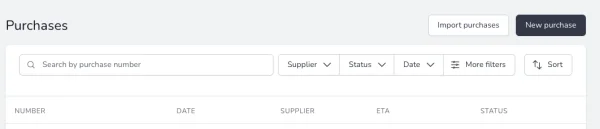
Navigate to Purchase via the left menu.
-
Click the New Purchase button at the top right.
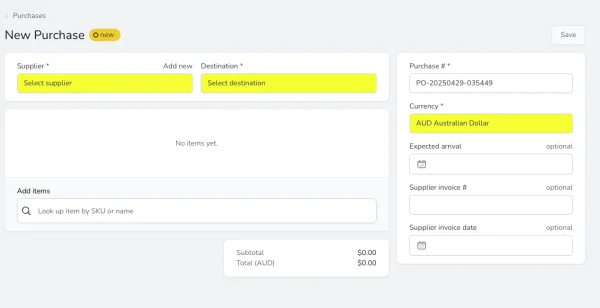
- In the new purchase order form, select a Supplier and Destination (inventory location) from the list.
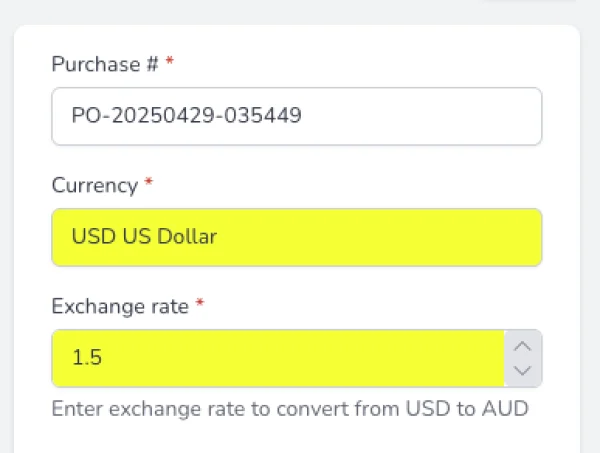
- Select the Currency from the right-side menu. If you choose a currency other than AUD (Australian Dollar), enter the Exchange Rate to convert it to AUD.
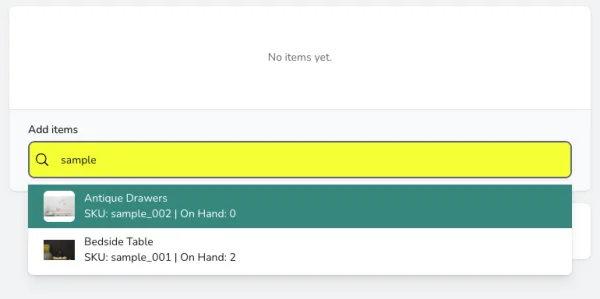
- Look up items by SKU or name under the Add Item section.
-
Select an item to add to the new purchase order.
-
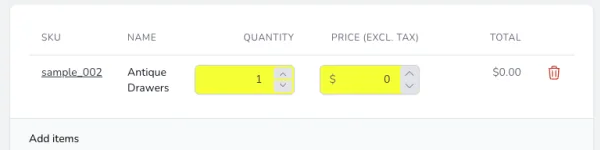
Enter the Quantity and Price (Ex tax) for the item line.
-
Repeat steps 5–7 to add more items to the purchase order.
-
Once you've finished adding items, click Save to create a draft purchase order.
Expected outcome: A new purchase appears with Draft status and can be reviewed before it is sent to the supplier.
Update purchase order status
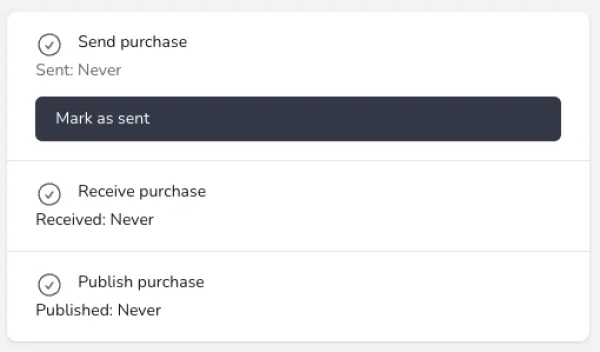
- Update the status to Sent after sending the PO to your supplier.
To change the status from Draft to Sent:
- Click the Mark as Sent button on the right menu.
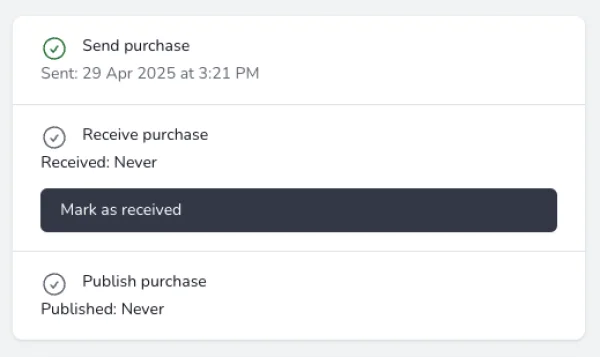
- Update the status to Received after received PO from your supplier.
To change the status from Sent to Received
- Click on "Mark as received" button from the right sidebar.
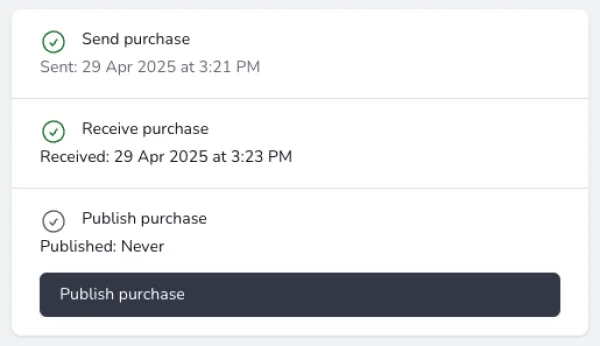
- Marked PO as Published to update the inventory quantity and cost.
Once PO marked as Published, you will not be able to edit it.
To change the status from Received to Published
- Click on "Published purchase" button from the right sidebar.
- Once PO marked as Published, Ricemill | Inventory will update the inventory quantity and cost and sync it to linked sales channel for Purchase items.
Troubleshooting: If you cannot publish the purchase, confirm it has moved through Sent and Received, all required line information is complete, and you understand that publishing cannot be edited afterward.
Learn how purchase orders fit with stock synchronisation, bundles and plan limits on the Ricemill Inventory app page.