How to convert inventory into a bundle
By Ricemill · Last reviewed: September 9th, 2026 · Reviewed by Chew Lim
In this article:
How to convert inventory into a bundle
Convert the inventory item from its More actions menu, then add existing inventory SKUs as components and set the quantity required for each one.
Before you start: Create every component as an inventory item, verify its SKU and quantity, and confirm that the item should permanently become a bundle. This conversion cannot be reversed.
Once an inventory item is converted to a bundle, it cannot be reversed.
Steps:
-
Navigate to Inventory via the left menu.
-
Open the item you want to convert to a bundle.
-
Click More actions button in the top right, then select Convert to bundle.

-
Confirm by clicking Convert in the popup.
-
After converting the item to a bundle, navigate to the Components section to add bundle components.
-
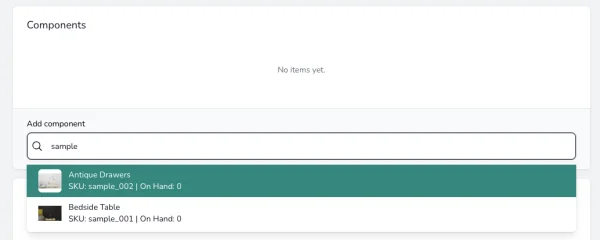
Search for existing inventory by SKU or name to add as a component.
-
Choose an item you want to add as a component.
-
Repeat steps 6 and 7 to add additional components.
-
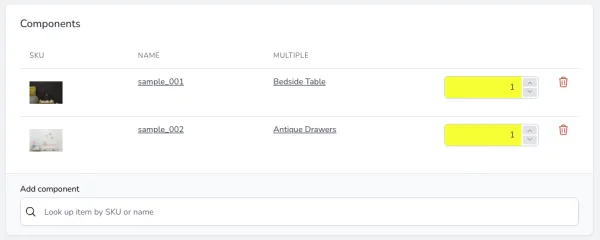
Specify the number of units for each component used to build the bundle.
- The Buildable Quantity will be calculated based on the available quantity for each component.
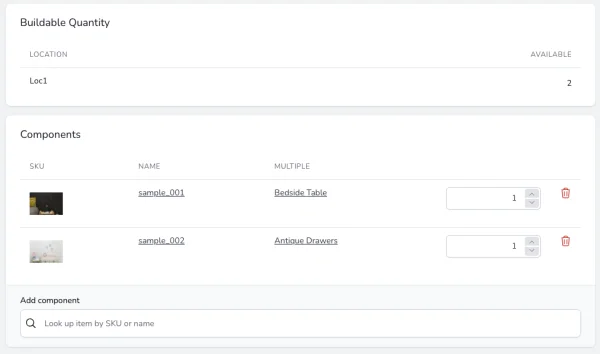
In the example above, it requires 1 x sample_001 and 1 x sample_002 to build a bundle. If sample_001 has 2 units available and sample_002 has 3 units available, the buildable quantity for this bundle is 2.
Expected outcome: The item displays its component list and a Buildable Quantity calculated from current component stock. If the value is unexpected, verify every linked SKU and required component quantity.