How to manually adjust inventory quantity
By Ricemill · Last reviewed: September 9th, 2026 · Reviewed by Chew Lim
In this article:
How to manually adjust inventory quantity
Open an inventory item, select its On Hand quantity, enter either an adjustment or a new total, choose a reason and save the change.
Before you start: Confirm the correct item and location, count the physical stock, and decide whether you are entering a change amount or replacing the total quantity.
Steps:
-
Navigate to Inventory via the left menu.
-
Open the item for which you want to adjust the quantity.
-
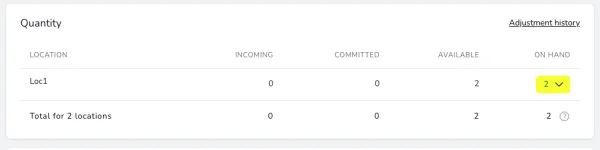
Scroll to the Quantity section of the page.
-
Click on the On Hand quantity.
-
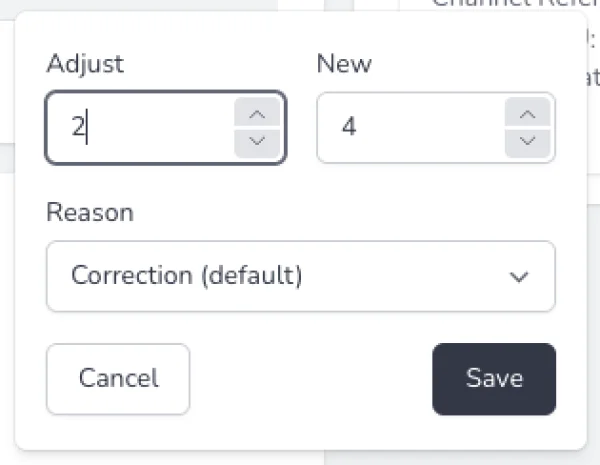
Enter an amount under Adjust to increase or decrease the quantity on hand, or under New to set a new quantity.
-
Select a Reason for the adjustment.
-
Click Save to update the quantity on hand.
Expected outcome: The On Hand quantity changes and the adjustment appears in the item's stock-movement history. If the result is wrong, check whether you used Adjust (a positive or negative difference) or New (the replacement total), then create a correcting adjustment with an accurate reason.